
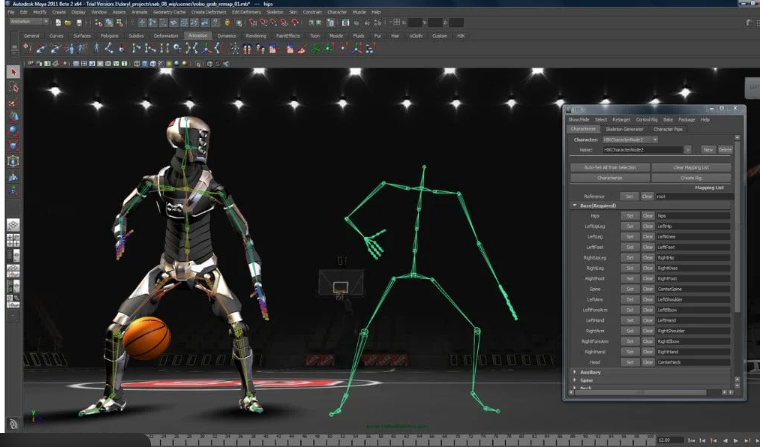
UI Animation Basics refers to the fundamental principles and techniques used to add movement, transitions, and interactive feedback to user interfaces. UI animations make digital products feel more alive, engaging, and intuitive by guiding users’ attention and improving overall usability. Whether you are designing mobile apps, websites, dashboards, or desktop software, animations help communicate meaning and reduce user confusion. When done right, animations make actions smoother—like opening a menu, pressing a button, switching screens, or loading content. They create a feeling of continuity and polish. Modern design tools such as Figma, Adobe XD, and Principle have made it easier for beginners to explore UI animations without coding. Understanding the basics of timing, easing, feedback, and visual hierarchy is essential for any aspiring UI/UX designer.
Good UI animation follows one simple rule: animation should support functionality, not distract from it. The purpose of animation is to guide the user through an interface, create logical transitions, highlight interaction, and make tasks easier. For example, when a user taps on a button, the button may slightly shrink and bounce back to indicate that the action was registered. When navigating from one screen to another, a sliding transition helps the user understand how the screens are connected. Without subtle animations, interfaces feel abrupt and mechanical. However, excessive or flashy animations can slow down workflow, increase cognitive load, and cause frustration. Therefore, balance and purpose are essential in UI animation.
Timing is one of the most important principles in UI animation. Designers use milliseconds (ms) to control the speed of animations. Too fast, and users may not notice what happened. Too slow, and users might feel the interface is lagging. The ideal animation duration for most UI interactions ranges between 150ms to 300ms. Simple actions like button taps or hover effects require shorter durations, while more complex transitions—such as opening a modal or changing pages—may require slightly longer durations. Timing gives animation rhythm and brings a natural feel that matches human perception. Understanding timing helps designers create animations that feel smooth and emotionally pleasing without causing delays.
Another essential element of UI animation is easing, which defines how the motion accelerates or decelerates over time. Real objects in the physical world do not move at a constant speed; they speed up and slow down naturally, and UI animations should follow the same principle. Common easing types include ease-in, ease-out, and ease-in-out. For example, an ease-out effect starts fast and slows down at the end, making elements feel like they are gently settling into place. Linear motion, which moves at a constant speed, often feels robotic and unnatural. Using the correct easing settings gives animations a more realistic flow and makes interactions feel intuitive. Most design tools provide presets for easing, making it easy for beginners to apply natural motion curves.
UI animation also plays a major role in visual hierarchy and storytelling. Animations help users understand what to focus on and where to go next. For instance, when a drop-down menu opens, items may fade in one by one, creating a clear order. When a notification appears, it might slide in from the top to catch the user’s attention without being intrusive. Animations help reduce cognitive friction by visually connecting actions with outcomes. They reveal the relationship between interface elements, making complex interactions feel simple. Good UI animation enhances clarity and eliminates confusion, helping users navigate the interface confidently.
A key concept in UI animation is micro-interactions, which are small interaction moments that provide feedback or communicate system status. Examples of micro-interactions include a heart icon filling when liked, a progress bar animating during file upload, or a toggle switch sliding from off to on. These animations make the experience delightful and help users understand the results of their actions. Micro-interactions rely on subtle motion, timing, and feedback to create a natural flow. They reduce uncertainty and give the interface personality. Effective micro-interactions are quick, purposeful, and consistent across the design system.
Performance is another important factor in UI animation. Poorly optimized animations can slow down apps, cause frame drops, and degrade user experience. Designers must consider device limitations, especially in mobile apps and low-powered devices. Lightweight animations—such as opacity changes, transforms, and simple transitions—perform better than heavy animations like large motion blurs or complex 3D transformations. Developers often optimize animations using GPU-accelerated techniques and CSS transforms. Designers must collaborate with developers to ensure that animations feel smooth and functional in real-world usage. Well-optimized animations build trust and create a professional feel.
Consistency is crucial in UI animation. A design system should define standard motion rules, such as animation durations, easing curves, component states, and micro-interaction styles. Consistent animation reduces cognitive load by helping users predict behavior. When animations follow a predictable pattern, users feel comfortable and confident navigating the interface. Inconsistent animation styles, on the other hand, may confuse users, break the flow, and make the interface look unprofessional. Motion guidelines provided by Google’s Material Design and Apple’s Human Interface Guidelines help designers understand best practices for creating smooth and consistent animations.
The future of UI animation lies in advanced interactions, AI-driven motion, and immersive experiences. With the rise of 3D interfaces, AR/VR design, and spatial UI, animations are becoming more dynamic and intelligent. Tools like Lottie allow developers to embed complex animations easily in apps, while motion design in Figma and After Effects is evolving rapidly. As technology progresses, UI animation will continue to enhance usability, accessibility, and emotional connection. But the fundamentals remain the same: animations must be purposeful, smooth, meaningful, and user-centered. Understanding the basics of timing, easing, micro-interactions, and consistency allows beginners to create beautiful and intuitive digital experiences.
Good UI animation follows one simple rule: animation should support functionality, not distract from it. The purpose of animation is to guide the user through an interface, create logical transitions, highlight interaction, and make tasks easier. For example, when a user taps on a button, the button may slightly shrink and bounce back to indicate that the action was registered. When navigating from one screen to another, a sliding transition helps the user understand how the screens are connected. Without subtle animations, interfaces feel abrupt and mechanical. However, excessive or flashy animations can slow down workflow, increase cognitive load, and cause frustration. Therefore, balance and purpose are essential in UI animation.
Timing is one of the most important principles in UI animation. Designers use milliseconds (ms) to control the speed of animations. Too fast, and users may not notice what happened. Too slow, and users might feel the interface is lagging. The ideal animation duration for most UI interactions ranges between 150ms to 300ms. Simple actions like button taps or hover effects require shorter durations, while more complex transitions—such as opening a modal or changing pages—may require slightly longer durations. Timing gives animation rhythm and brings a natural feel that matches human perception. Understanding timing helps designers create animations that feel smooth and emotionally pleasing without causing delays.
Another essential element of UI animation is easing, which defines how the motion accelerates or decelerates over time. Real objects in the physical world do not move at a constant speed; they speed up and slow down naturally, and UI animations should follow the same principle. Common easing types include ease-in, ease-out, and ease-in-out. For example, an ease-out effect starts fast and slows down at the end, making elements feel like they are gently settling into place. Linear motion, which moves at a constant speed, often feels robotic and unnatural. Using the correct easing settings gives animations a more realistic flow and makes interactions feel intuitive. Most design tools provide presets for easing, making it easy for beginners to apply natural motion curves.
UI animation also plays a major role in visual hierarchy and storytelling. Animations help users understand what to focus on and where to go next. For instance, when a drop-down menu opens, items may fade in one by one, creating a clear order. When a notification appears, it might slide in from the top to catch the user’s attention without being intrusive. Animations help reduce cognitive friction by visually connecting actions with outcomes. They reveal the relationship between interface elements, making complex interactions feel simple. Good UI animation enhances clarity and eliminates confusion, helping users navigate the interface confidently.
A key concept in UI animation is micro-interactions, which are small interaction moments that provide feedback or communicate system status. Examples of micro-interactions include a heart icon filling when liked, a progress bar animating during file upload, or a toggle switch sliding from off to on. These animations make the experience delightful and help users understand the results of their actions. Micro-interactions rely on subtle motion, timing, and feedback to create a natural flow. They reduce uncertainty and give the interface personality. Effective micro-interactions are quick, purposeful, and consistent across the design system.
Performance is another important factor in UI animation. Poorly optimized animations can slow down apps, cause frame drops, and degrade user experience. Designers must consider device limitations, especially in mobile apps and low-powered devices. Lightweight animations—such as opacity changes, transforms, and simple transitions—perform better than heavy animations like large motion blurs or complex 3D transformations. Developers often optimize animations using GPU-accelerated techniques and CSS transforms. Designers must collaborate with developers to ensure that animations feel smooth and functional in real-world usage. Well-optimized animations build trust and create a professional feel.
Consistency is crucial in UI animation. A design system should define standard motion rules, such as animation durations, easing curves, component states, and micro-interaction styles. Consistent animation reduces cognitive load by helping users predict behavior. When animations follow a predictable pattern, users feel comfortable and confident navigating the interface. Inconsistent animation styles, on the other hand, may confuse users, break the flow, and make the interface look unprofessional. Motion guidelines provided by Google’s Material Design and Apple’s Human Interface Guidelines help designers understand best practices for creating smooth and consistent animations.
The future of UI animation lies in advanced interactions, AI-driven motion, and immersive experiences. With the rise of 3D interfaces, AR/VR design, and spatial UI, animations are becoming more dynamic and intelligent. Tools like Lottie allow developers to embed complex animations easily in apps, while motion design in Figma and After Effects is evolving rapidly. As technology progresses, UI animation will continue to enhance usability, accessibility, and emotional connection. But the fundamentals remain the same: animations must be purposeful, smooth, meaningful, and user-centered. Understanding the basics of timing, easing, micro-interactions, and consistency allows beginners to create beautiful and intuitive digital experiences.